In August 2025, Swann Security officially discontinued its integration with Google Home. This move left many users with smart displays and Chromecasts unable to view their camera feeds through the Google ecosystem. However, for those willing to use a bridge, Scrypted provides a powerful, low-latency way to restore this functionality using RTSP (Real-Time Streaming Protocol).
The Fallout: Why Swann and Google Split
The official reason provided by Swann for the discontinuation was an inability to restore full functionality despite “extensive efforts” to collaborate with Google. As of late 2025, existing and new account links between the two services are disabled. This affects:
Voice Commands: You can no longer ask Google to “Show the front door.”
Smart Displays: Nest Hubs and Hub Max devices will no longer pull the stream.
Google Home App: The “Live View” tab for Swann cameras is permanently broken.
The Solution: Scrypted + RTSP
Scrypted is an ultra-high-performance home automation server that specializes in video. By tapping into the local RTSP streams of your Swann cameras, Scrypted can “re-package” that video and present it to Google Home as if it were a native Google-supported device.
1. Identify Your RTSP URL
Most Swann cameras support RTSP (Real Time Streaming Protocol). This is the “raw” video feed that allows third-party software to see what the camera sees without using Swann’s app.
The typical RTSP URL for a Swann device looks like this:rtsp://[USERNAME]:[PASSWORD]@[IP_ADDRESS]:554/someurl/parameters
Note: You may need to enable RTSP/ONVIF in your Swann NVR/DVR settings first. Ensure you have a Static IP assigned to your recorder so the address doesn’t change after a reboot.

As you can see, the channel parameter has a two-digit channel number starting from 01 – first channel, 02 – second channel, and so on. The subtype is the stream and for this particular NVR, 0 is the Master stream and 1 is the Sub stream. For the purposes of displaying the video feed on a small Google Home display, I don’t really need a 4K video (subtype=0) Therefore, I use the 720p substream (subtype=1).
So, for my Swann NVR8-8580 the URL for 720p channel 3 stream will be:
rtsp://my_user:my_password@my_ip:554/rtsp/streaming?channel=03&subtype=1where my_user and my_password are my NVR credentials separated by colon (:) and my_ip is my ip address.
Pro Tip: Test your URL in the VLC Media Player (Open Network Stream and paste the URL) first. If it plays there, it will work in Scrypted.
2. Set Up Scrypted for Google Home
Install Scrypted: Run Scrypted on a dedicated device (a Raspberry Pi 4/5, a Proxmox VM, as a Docker container). Here is the documentation how you can install it. I have ran Scrypted on Linux but now I’m running it on a very lightweight VM with Docker.
Install the RTSP Plugin: Go to the Plugins tab, search for the RTSP Camera Plugin, and add your Swann cameras using the URLs identified above.
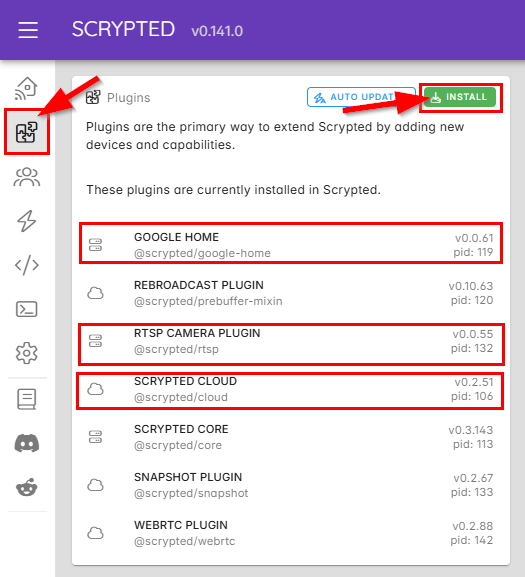

Install the Scrypted Cloud Plugin: This is required for Google’s servers to communicate with your local Scrypted instance securely.
You can find the Scrypted documentation for Google Home here.In the following screenshot, I’m using Port Forwarding and I have forwarded port 45678 on my router to point to the VM running Scrypted.
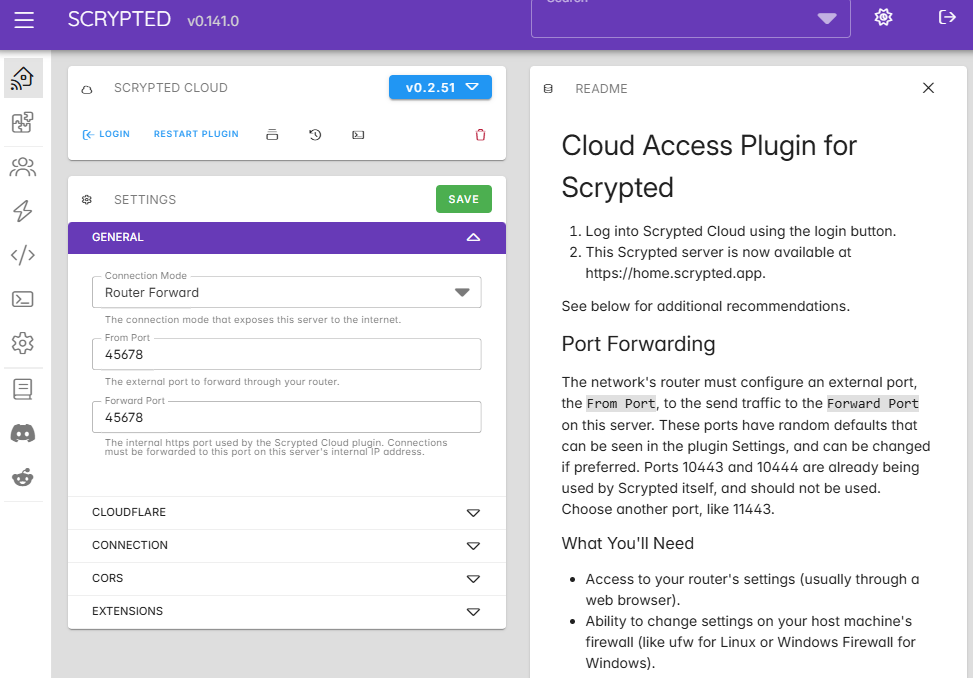
Follow the instructions on the right pane in Scripted to create a free Scrypted Cloud account at https://home.scrypted.app. The Scrypted Cloud account credentials can be totally different from your local Scripted service.
Install the Google Home Plugin: Search for and install the Google Home plugin within Scrypted. Enable the devices/cameras you would like to be able to see in Google Home.
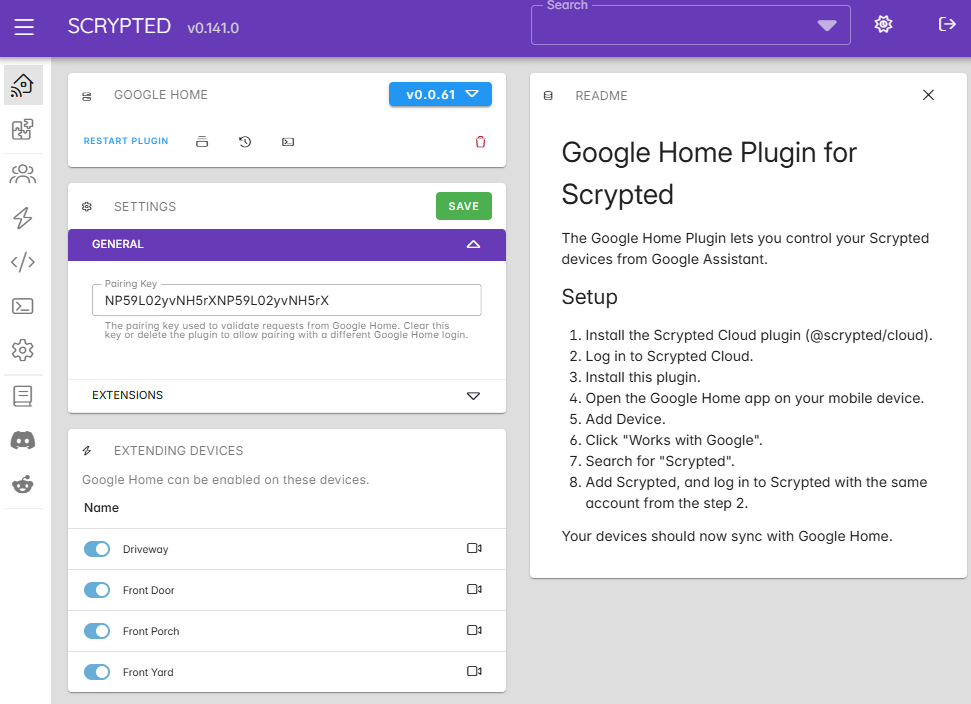
- Link the Services: Open your Google Home app on your phone, tap “Works with Google,” and search for “Scrypted Home Automation.” Log in with your Scrypted Cloud credentials.
The end result
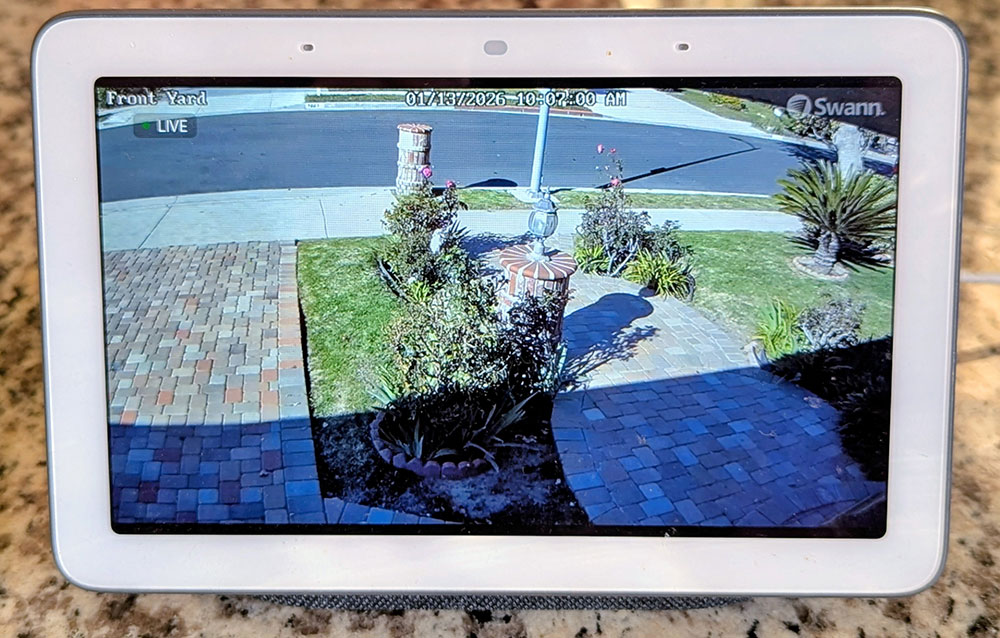
Note: At the time of writing, this integration cannot display live camera feeds directly within the mobile Google Home app. While the camera icon appears, selecting it only opens the integration description rather than a video stream. This is not an issue for me, as I use the native Swann Security app for mobile viewing.
Conclusion:
No Subscription: You aren’t paying for a “cloud” service to view your own local hardware.
Privacy: The video remains on your local network, only exiting to the cloud when you specifically request to view it remotely.
- Lower Latency: RTSP feeds via Scrypted are often faster than the original cloud integration.
Stability: Since it relies on the local RTSP stream, you are no longer at the mercy of Swann’s cloud API uptime.