In the ever-evolving landscape of cybersecurity, merely defending your perimeter is no longer enough. Sophisticated attackers are constantly probing, seeking weaknesses, and trying to gain a foothold within your network. But what if you could not only detect these intruders but also learn from their tactics without exposing your critical assets? Enter the honeypot: a deceptive system designed to attract, trap, and study cyberattacks.
Why You Need a Honeypot: The Benefits of Deception
Think of a honeypot as a digital tripwire, a decoy system that looks and acts like a legitimate part of your network but contains no real data or sensitive information. Its sole purpose is to lure attackers away from your valuable resources and into a controlled environment where their activities can be monitored. Here’s why integrating a honeypot into your security strategy is a sweet deal:
- Early Detection: Honeypots are often the first to trigger an alert when an attacker is actively scanning or attempting to exploit vulnerabilities. This provides invaluable early warning, allowing your security team to respond proactively before real damage is done.
- Threat Intelligence Gathering: By observing attacker behavior within the honeypot, you can gain deep insights into their methods, tools, and targets. This intelligence is crucial for understanding current threats, identifying emerging attack patterns, and strengthening your overall defenses.
- Reduced Risk to Production Systems: Since a honeypot is isolated and contains no valuable data, any attacks launched against it pose no threat to your critical production systems. This allows you to safely observe and analyze malicious activity without fear of compromise.
- Identification of Insider Threats: While often associated with external attackers, honeypots can also be effective in detecting suspicious activity from within your network, potentially uncovering insider threats.
- Training and Education: Security teams can use honeypot data to train personnel on recognizing attack signatures, understanding attacker motivations, and practicing incident response procedures in a safe environment.
- Compliance and Forensics: Data collected from honeypots can be vital for compliance audits and forensic investigations, providing evidence of attack attempts and helping to reconstruct incidents.
In essence, a honeypot turns the tables on attackers. Instead of them hunting for your weaknesses, you create an irresistible target that helps you understand their game.
Setting up OpenCanary as a Docker container running on a Linux VMware VM
OpenCanary is very lightweight, which allows you to run in on a spare Raspberry Pi or an old PC. Since I have a Docker engine already running on one of my VMs, I decided to put it there. It is a very easy setup but it requires a few extra steps.
You can get the OpenCanary for Docker from GitHub:
https://github.com/thinkst/opencanary
The two files to modify are:
- docker-compose.yml
- data/.opencanary.conf
Accurate Source IP Reporting
In order for the actual source IP to be captured, the network_mode in docker-compose.yml is set to “host”. This can be a problem in cases where different containers listen on the same ports but are mapped to different network adapters. For instance one container can be running Nginx on port 80, while another can be running Pi-hole on the same port 80. With VMs, it is very easy to add multiple network adapters and to map each container to listen only on a particular IP address. However, In host mode, all adapters are exposed and there is no way to specify a particular network interface or an IP to map the ports of the container. Therefore, port 80 will overlap with the ports already listening for other containers.
This can be avoided by using macvlan networks. A macvlan network gives the Docker container its own MAC address and its own IP address directly on your physical network. To the rest of the network, the container looks like a separate physical machine (even for the Docker host). And the best part – it cats as a totally separate network interface.
Change the networks section under services:
  services:
    ...
    networks:
      opencanary_net:
        # Assign a specific static IP on your physical network
        # Ensure the router's DHCP pool EXCLUDES this address
        ipv4_address: 192.168.1.240
        # No port mappings needed; container is directly on the LAN
Add networks section with the following content:
networks:
  opencanary_net:
    driver: macvlan
    driver_opts:
      # Change 'eth0' to your actual host interface name (found via 'ip addr')
      parent: eth0
    ipam:
      config:
        - subnet: 192.168.1.0/24    # Your actual LAN subnet
          gateway: 192.168.1.1      # Your router's IP
          # Optional: Restrict which IPs Docker can assign automatically.
          # Ensure the router's DHCP pool EXCLUDES these addresses!
          #ip_range: 192.168.1.48/28
While the Macvlan driver allows a container to act like a physical device, the standard Docker engine cannot automatically obtain an IP from a network DHCP server (like your router).
Docker manages its own internal IPAM (IP Address Management) and will assign an address from the subnet you define in the compose file, even if a DHCP server exists on that same network.
In reality there are few options for “DHCP-like” behavior
- Static Assignment (Recommended and used in this guide)
Manually assign an IP that is outside your router’s DHCP pool. This is the most stable method for a honeypot, as you won’t need to track down its IP to check logs. - Docker-Managed Dynamic IPs
If you omit ipv4_address, Docker will automatically assign the next available IP from the ip_range you defined in the networks section. - External DHCP Plugins
You can use third-party plugins like docker-net-dhcp to integrate with a real DHCP server. This requires installing a separate plugin on your host machine. - Inside-Container DHCP Client
You can install a DHCP client (like dhclient or udhcpc) inside your OpenCanary container. You would then need to run ip addr flush dev eth0 && dhclient eth0 when the container starts. This is generally discouraged as it breaks the “one process per container” philosophy and requires extra NET_ADMIN capabilities.
Getting Macvlan to work with VMware ESXi
Go to Networking and select the virtual switch where the VM is connected. It usually is named “vSwitch0” or something similar.
Click on Actions and then Edit settings
Expand the Security section and set all three options to Accept:
- Promiscuous mode: Set to Accept to allow the VM interface to “see” traffic for multiple MAC addresses.
- MAC address changes: Set to Accept so the guest OS can change its effective MAC address.
- Forged transmits: Set to Accept to allow outgoing traffic with a source MAC different from the one assigned by ESXi.
Enable fake services
For example:
“git.enabled”: true
“ftp.enabled”: true
“http.enabled”: true
“ssh.enabled”: true
The idea is to enable as much as possible fake services while keeping the false positives to a minimum.
Setup email notifications
To add email notifications in OpenCanary, you must edit the data/.opencanary.conf file to include an SMTP logger configuration with your mail server details.
Add the SMTP configuration within the logger section of the JSON file. You will need to replace the placeholder values with your specific SMTP server information.Here is a sample configuration using a mail server that requires authentication (e.g., Gmail with an App Password):
"logger": {
    "class": "PyLogger",
    "kwargs": {
        "handlers": {
            "file": {
                "class": "logging.FileHandler",
                "filename": "/var/tmp/opencanary.log"
            },
            "SMTP": {
                "class": "logging.handlers.SMTPHandler",
                "mailhost": ["smtp.gmail.com", 587],
                "fromaddr": "your-email@gmail.com",
                "toaddrs": ["your-email@gmail.com"],
                "subject": "OpenCanary Alert: Intrusion Detected!",
                "credentials": ["your-email@gmail.com", "your-app-password"],
                "secure": []
            }
        }
    }
}
Running OpenCanary
After all the changes are made, we are ready to start the OpenCanary Docker container.
docker compose up -dTesting OpenCanary
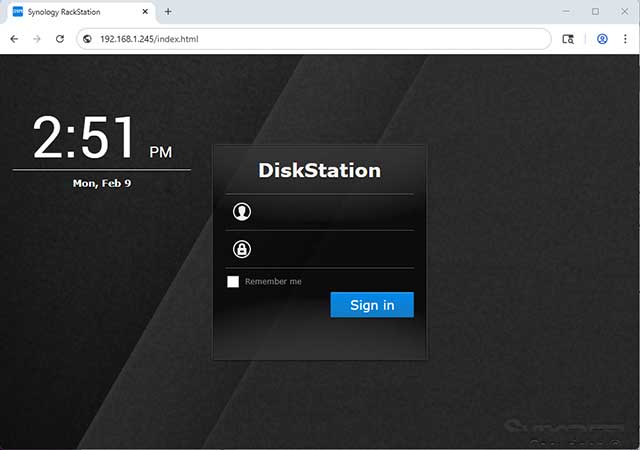
To test OpenCanary, simply connect to one of the fake services.
For example opening http://<open_canary_ip> should return a screen like this and will log an event in OpenCanary.